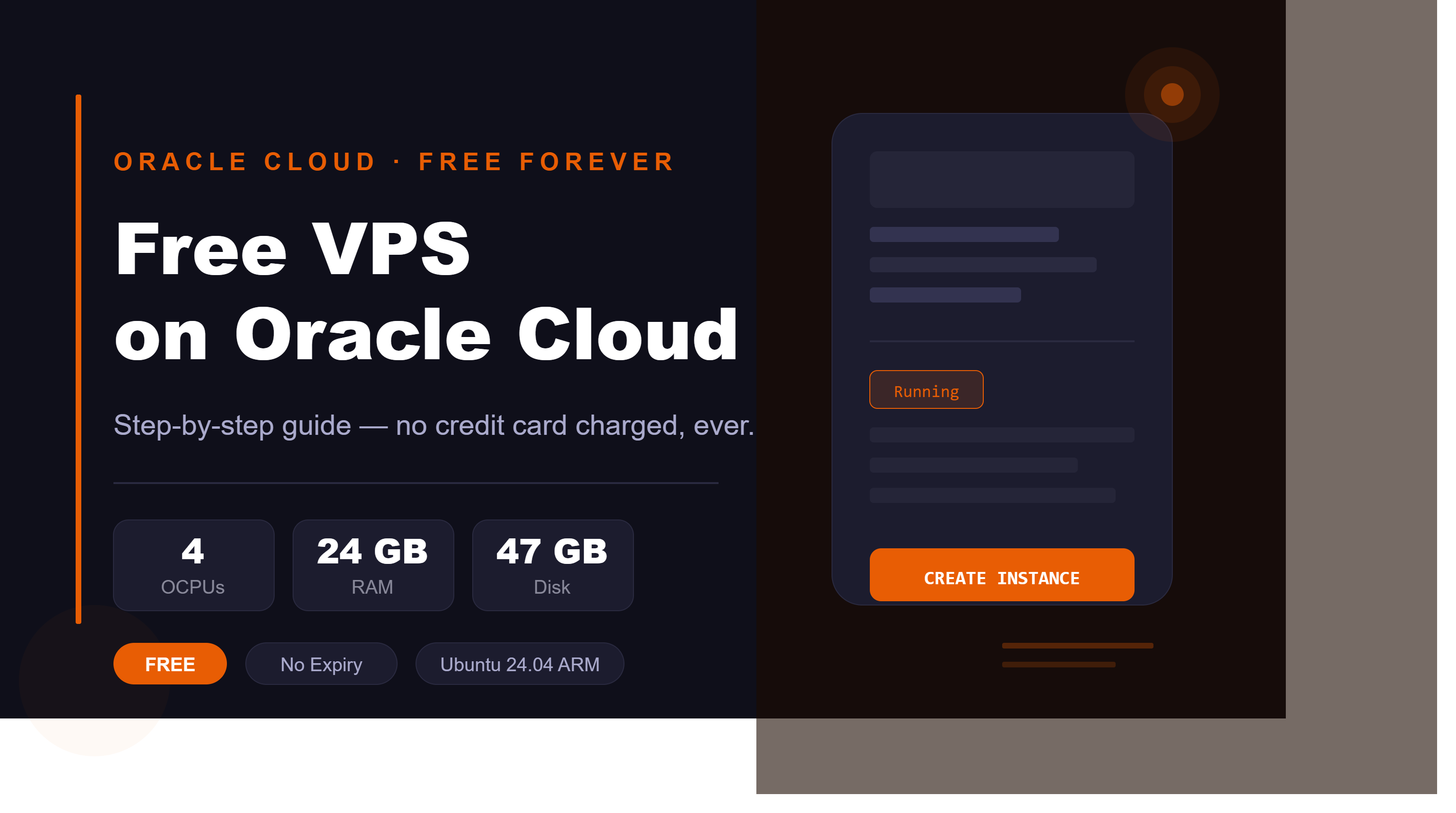
How to Get a Free Forever VPS on Oracle Cloud (Complete Guide)
TL;DR: Oracle's Always Free tier gives you a powerful ARM server with 4 OCPUs + 24 GB RAM, 47 GB disk, and 10 TB/month bandwidth — completely free, forever. This guide walks you through every step including common errors and fixes.
Difficulty: Beginner
Time Required: 15–30 minutes (plus waiting time for capacity)
OS: Works from Windows, Mac, or Linux
1. What You Get for Free
Oracle Cloud's Always Free tier is the most generous free cloud offering available. Unlike AWS or GCP free tiers that expire after 12 months, Oracle's Always Free resources never expire.
| Resource | Always Free Limit |
|---|---|
| VM.Standard.A1.Flex (ARM) | 4 OCPUs + 24 GB RAM total |
| VM.Standard.E2.1.Micro (AMD) | 2 instances |
| Boot Volume | 47 GB per instance |
| Block Volumes | 200 GB total |
| Outbound Bandwidth | 10 TB/month |
| Public IPs | 2 ephemeral IPs |
| Object Storage | 20 GB |
| Autonomous Database | 2 instances |
⚠️ Warning: These resources are free forever only if you stay on Always Free. Never click the "Upgrade" button shown in the orange banner at the top of the console.
2. Create an Oracle Cloud Account
- Go to cloud.oracle.com and click Start for free
- Enter your email, name, and choose a Home Region (cannot be changed later)
- Verify your phone number
- Add a credit/debit card for identity verification
💡 Tip on credit card: Oracle keeps your card on file for verification but will not charge you for Always Free resources. If you're worried, use a virtual/prepaid card with ₹0 balance — any charge attempt will simply fail.
Choosing Your Home Region
Pick the region closest to your users:
- India South (Hyderabad) —
ap-hyderabad-1 - India West (Mumbai) —
ap-mumbai-1
⚠️ Your Home Region cannot be changed after account creation. Choose carefully.
3. Navigate to Compute Instances
- Log in to cloud.oracle.com
- Click the ☰ hamburger menu (top left)
- Go to Compute → Instances
- Click Create Instance
You'll see a multi-step wizard with these sections:
- Basic Information
- Security
- Networking
- Storage
- Review
4. Configure Image and Shape
This is the most critical step. Use exactly these settings:
Image
- Click Change image
- Select Canonical Ubuntu
- Version: 24.04
- For A1.Flex shape: choose aarch64 (ARM) image
- Click Select image
Shape
- Click Change shape
- Select the Ampere tab
- Choose VM.Standard.A1.Flex
- Set OCPUs: 4
- Set Memory: 24 GB
- Click Select shape
| Setting | Free Value | Paid (avoid) |
|---|---|---|
| Shape | VM.Standard.A1.Flex | VM.Standard.E4.Flex |
| Architecture | ARM (aarch64) | x86_64 |
| OCPUs | 4 | any |
| RAM | 24 GB | any |
⚠️ Do NOT use E3.Flex, E4.Flex, or E5.Flex — those are paid AMD shapes and will charge your credit card.
5. Security Settings
On the Security step:
- Shielded instance → Leave OFF
- Confidential computing → Leave OFF (not supported on A1.Flex ARM shape)
💡 The A1.Flex ARM shape does not support Confidential Computing — that feature requires AMD EPYC processors (E3/E4/E5 shapes). If you see "incompatible settings" warning, it's because you previously had an AMD shape selected.
Click Next.
6. Set up Networking
Primary Network
- Select "Create new virtual cloud network"
- VCN name: auto-generated (e.g.
vcn-20260615-1913) — keep it
Subnet
- Select "Create new public subnet"
- Subnet name: auto-generated — keep it
- CIDR block:
10.0.0.0/24— keep default
Public IP
- Scroll down to Public IPv4 address assignment
- Toggle "Automatically assign public IPv4 address" → ON
⚠️ Known bug: The Public IPv4 toggle may be greyed out even after selecting a public subnet. If this happens, skip it and assign the IP after creation (see Step 10).
IPv6
- Leave OFF (not needed for basic use)
7. Download SSH Keys
Still on the Networking page, scroll down to Add SSH Keys:
- Select "Generate a key pair for me"
- Click "Download private key" → save as e.g.
oracle-key.key - Click "Download public key" → save as backup
⚠️ Critical: Download your private key NOW. Oracle shows it only once. Without it, you cannot SSH into your server — you'll have to recreate the instance.
Save to a memorable location:
- Windows:
C:\Users\YourName\Desktop\oracle-key.key - Mac/Linux:
~/Downloads/oracle-key.key
Click Next.
8. Storage Settings
On the Storage step — change nothing:
- Specify custom boot volume size → OFF (default 47 GB is free)
- Use in-transit encryption → leave as-is
- Block volumes → leave empty
⚠️ Do not increase boot volume size beyond 47 GB or add block volumes beyond 200 GB total across all instances — those cost money.
Click Next, then scroll down and click Create.
9. Handle "Out of Capacity" Error
After clicking Create, you may see:
API Error: Out of capacity for shape VM.Standard.A1.Flex
in availability domain AD-1. Create the instance in a
different availability domain or try again later.
This is extremely common in India regions — free ARM servers are always in high demand. Here's how to deal with it:
Option 1 — Keep Retrying Manually
Click Create every 10–15 minutes. Capacity opens randomly as other users stop their instances.
Option 2 — Use an Automation Script (Recommended)
The YouTube video youtu.be/TAZfDdQha3U (at 12:41) demonstrates a script that automatically retries the OCI API. Run it overnight — most people get capacity within 24–48 hours.
Option 3 — Try Different Availability Domains
Go back to Basic Information → change Availability Domain from AD-1 to AD-2 or AD-3.
Option 4 — Try a Different Region
Switch to Mumbai (ap-mumbai-1) — it may have more free capacity than Hyderabad.
💡 Best time to try: Capacity tends to open up at odd hours — try 2–5 AM IST for best results.
⚠️ Do NOT switch to E4.Flex as an alternative — that will cost money. Stick with A1.Flex and keep retrying.
10. Assign a Public IP Address
If your instance was created without a public IP (shows - in the Details tab):
- Go to Compute → Instances → click your instance
- Click the Networking tab
- Under Attached VNICs → click the VNIC name (blue link)
- Click the IP Administration tab
- Click the ⋮ three dots → Edit
- Under Public IP type → select "Ephemeral public IP"
- Leave the name field blank → click Update
You'll now see a public IP like 140.245.xxx.xxx — copy it.
11. SSH into Your Server
Windows (PowerShell)
# Step 1: Fix key file permissions (required on Windows)
icacls "C:\Users\YourName\Desktop\oracle-key.key" /inheritance:r /grant:r "%USERNAME%:R"

# Step 2: Connect
ssh -i "C:\Users\YourName\Desktop\oracle-key.key" ubuntu@YOUR_PUBLIC_IP
Mac / Linux (Terminal)
# Step 1: Fix key permissions
chmod 600 ~/Downloads/oracle-key.key

# Step 2: Connect
ssh -i ~/Downloads/oracle-key.key ubuntu@YOUR_PUBLIC_IP
When prompted:
Are you sure you want to continue connecting (yes/no)? yes
You should see the Ubuntu welcome screen — you're in! ✅
Troubleshooting SSH
| Error | Fix |
|---|---|
Permission denied (publickey) |
Run the icacls or chmod 600 command first |
Connection timed out |
Public IP not assigned — see Step 10 |
Connection refused |
Port 22 not open in OCI security list |
12. First Server Setup
Run these commands right after your first login:
Update System Packages
sudo apt update && sudo apt upgrade -y
Add Swap Space (Prevents Crashes)
Your server has no swap by default. If RAM fills up, it will crash instead of using disk. Fix this:
sudo fallocate -l 2G /swapfile
sudo chmod 600 /swapfile
sudo mkswap /swapfile
sudo swapon /swapfile
echo '/swapfile none swap sw 0 0' | sudo tee -a /etc/fstab
Verify:
free -h
# Should now show 2GB swap
Install Antigravity CLI (Optional — AI in Terminal)
curl -fsSL https://antigravity.google/cli/install.sh | bash
echo 'export PATH="/home/ubuntu/.local/bin:$PATH"' >> ~/.bashrc && source ~/.bashrc
agy
💡 Antigravity CLI detects SSH sessions and shows an authorization URL — open it in your browser to sign in with Google.
13. Open Ports (Fix Connection Refused)
When you deploy an app (Django, Docker, Node.js etc.) on a port like 8000, 3000, or 80, it won't be accessible from the internet even if the app is running. This is because OCI has two layers of firewall:
Layer 1 — OS Firewall (iptables)
Open the port on the server itself:
# Open port 8000 (replace with your port)
sudo iptables -I INPUT -p tcp --dport 8000 -j ACCEPT

# Save rules so they persist after reboot
sudo apt install netfilter-persistent -y
sudo netfilter-persistent save
Layer 2 — OCI Cloud Firewall (Security List)
Even after opening the OS firewall, OCI's cloud-level firewall also blocks the port. You must add an Ingress Rule in the console:
- Go to Networking → Virtual Cloud Networks
- Click your VCN (e.g.
vcn-20260615-1006) - Scroll down → click subnet link → scroll down → click Default Security List
- Click Add Ingress Rules
- Fill in:
| Field | Value |
|---|---|
| Source Type | CIDR |
| Source CIDR | 0.0.0.0/0 |
| IP Protocol | TCP |
| Source Port Range | (leave blank) |
| Destination Port Range | 8000 |
| Description | Allow port 8000 |
- Click Add Ingress Rules ✅
💡 Repeat for any other ports you need (80 for HTTP, 443 for HTTPS, 3000 for Node.js, etc.)
Common Ports to Open
| Service | Port |
|---|---|
| HTTP | 80 |
| HTTPS | 443 |
| Django dev server | 8000 |
| Node.js | 3000 |
| PostgreSQL | 5432 |
| Custom Docker app | your port |
After adding the ingress rule, wait 10–15 seconds then try accessing:
http://YOUR_PUBLIC_IP:8000
14. What to Run on Your Free VPS
With 4 OCPUs and 24 GB RAM (on A1.Flex), you can run serious workloads:
🤖 Telegram Bot
sudo apt install python3-pip python3-venv -y
mkdir ~/telegram-bot && cd ~/telegram-bot
python3 -m venv venv && source venv/bin/activate
pip install python-telegram-bot
RAM usage: ~30–50 MB. Runs 24/7 easily.
🌐 Django Website
Handles 50,000+ daily visits on A1.Flex with Nginx + Gunicorn.
pip install django gunicorn
# Then set up Nginx as reverse proxy on port 80
🔒 WireGuard VPN
sudo apt install wireguard -y
Your own private VPN server — free forever.
🐳 Docker
curl -fsSL https://get.docker.com | sh
sudo usermod -aG docker ubuntu
Run any containerized app 24/7.
🤖 Antigravity CLI
curl -fsSL https://antigravity.google/cli/install.sh | bash
Google's AI agent directly in your terminal.
Summary: Always Free Limits Cheat Sheet
| ✅ Free Forever | ❌ Will Cost Money |
|---|---|
| VM.Standard.A1.Flex (4 OCPU / 24 GB) | VM.Standard.E4.Flex |
| VM.Standard.E2.1.Micro × 2 | Any E3/E4/E5 flexible shapes |
| 47 GB boot volume (default) | Boot volume > 47 GB |
| 200 GB block storage total | Block storage > 200 GB |
| 10 TB outbound bandwidth | Bandwidth > 10 TB |
| 2 ephemeral public IPs | Reserved public IPs |
| Clicking "Create" repeatedly | Clicking "Upgrade" |
Final Tips
- Set a budget alert at ₹1 in Billing → Budgets to get notified if anything is ever charged
- Never click "Upgrade" in the orange Free Tier banner
- Keep retrying for A1.Flex if you get capacity errors — it always comes through within 24–48 hours
- Both firewall layers must be open (iptables + OCI Security List) for ports to work
- Download your SSH key immediately — it cannot be retrieved later
Written based on hands-on experience setting up Oracle Always Free VPS in June 2026.
Oracle Always Free resources never expire — not even after your 30-day trial ends.





1 Comments
BlogForge
Even this blog website is hosted on "Always Free" Oracle VPS.